
Examination Docs
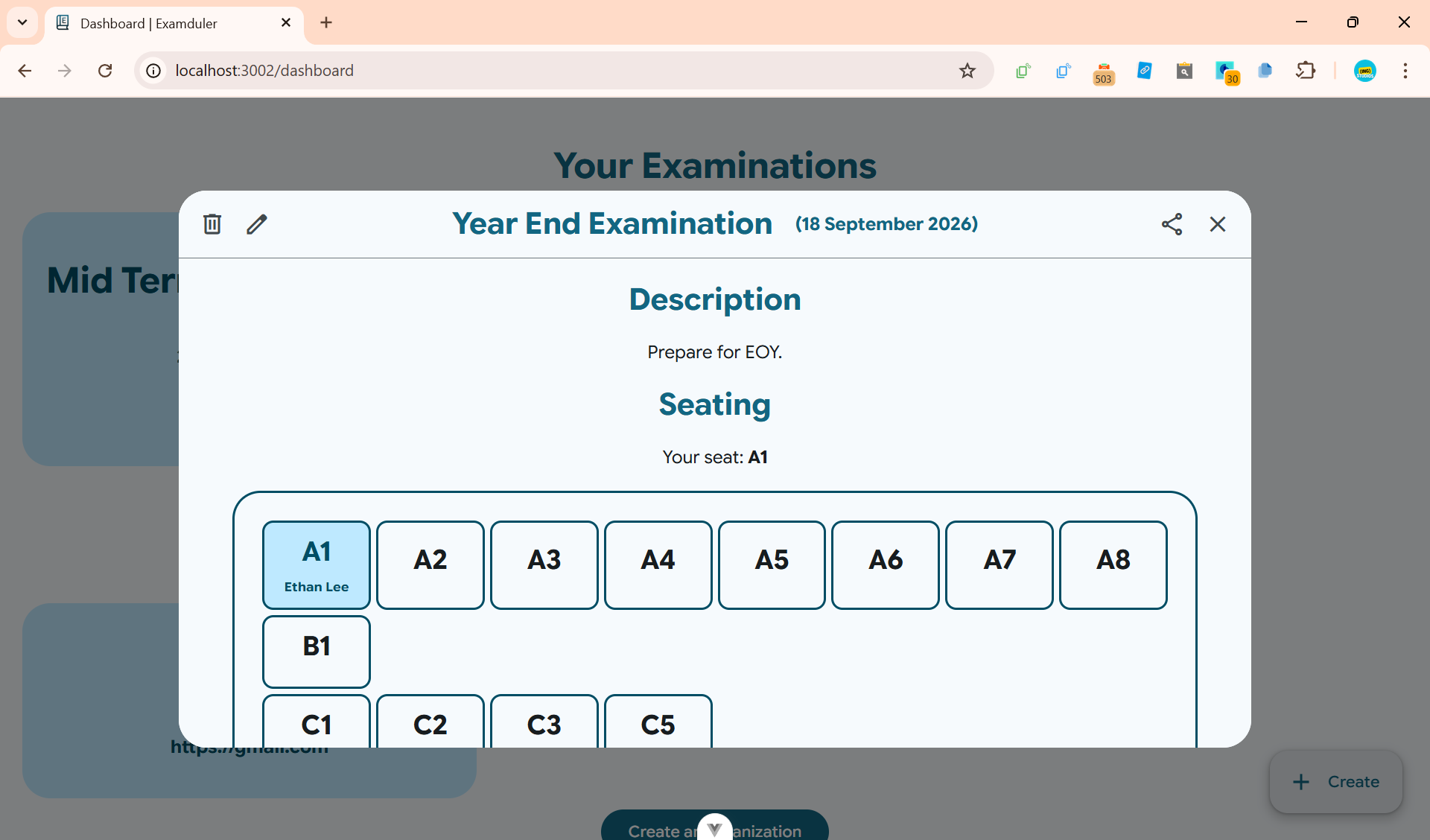
An examination provides details on the actual examination such as time, seating, and description.
View an Examination
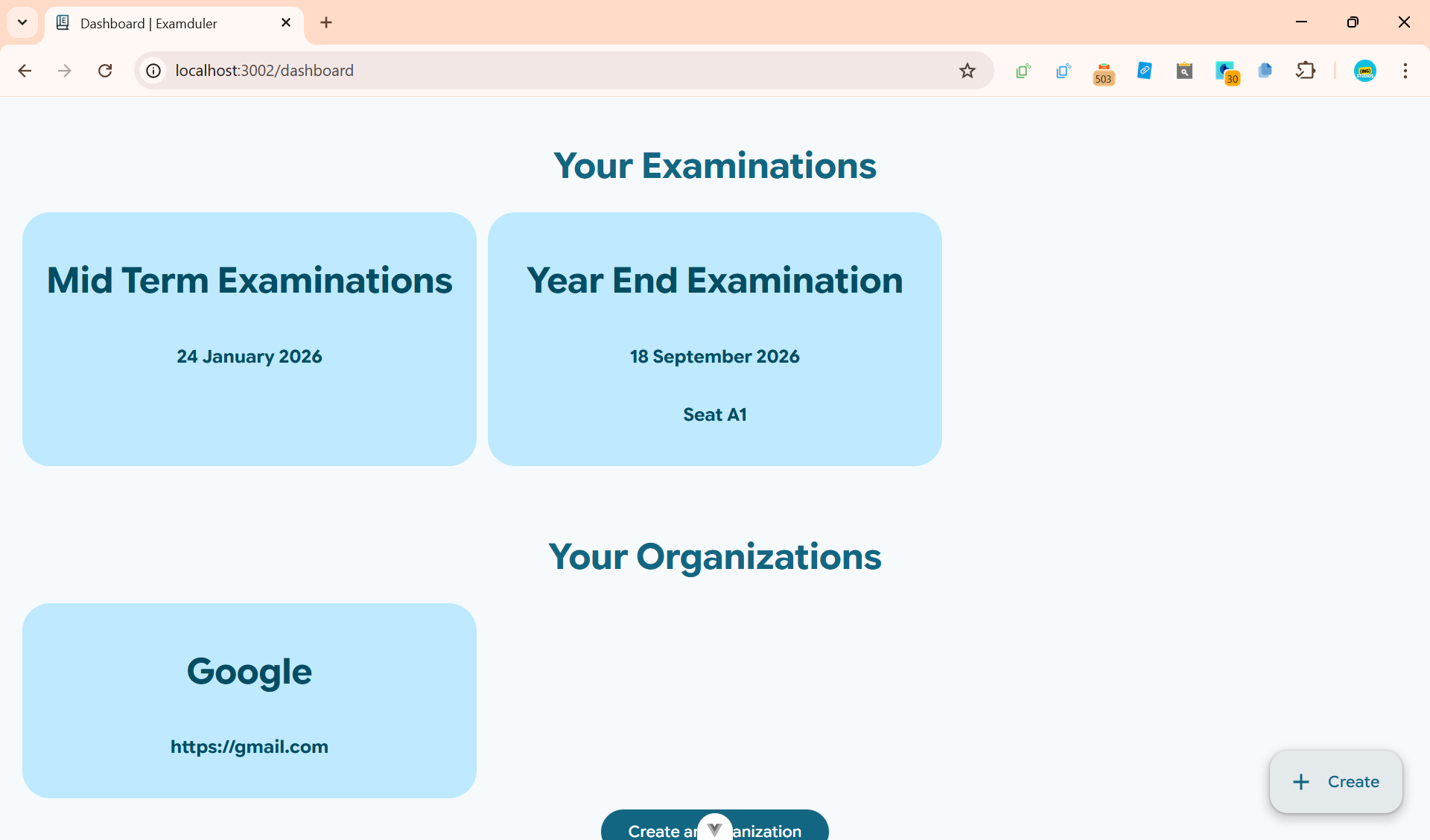
Click on the examination on the dashboard to view examination details and seating.
Create an Examination
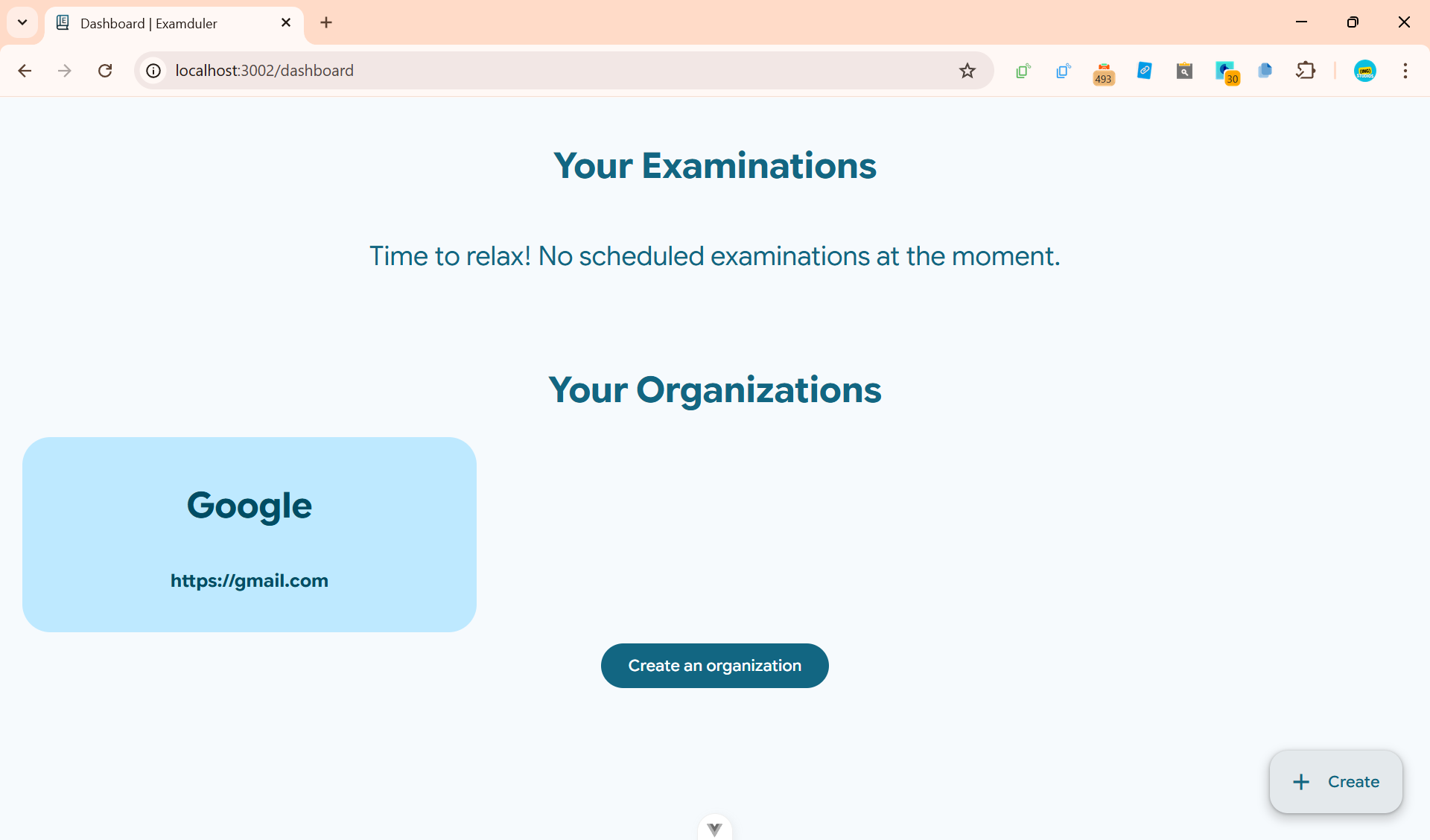
Click
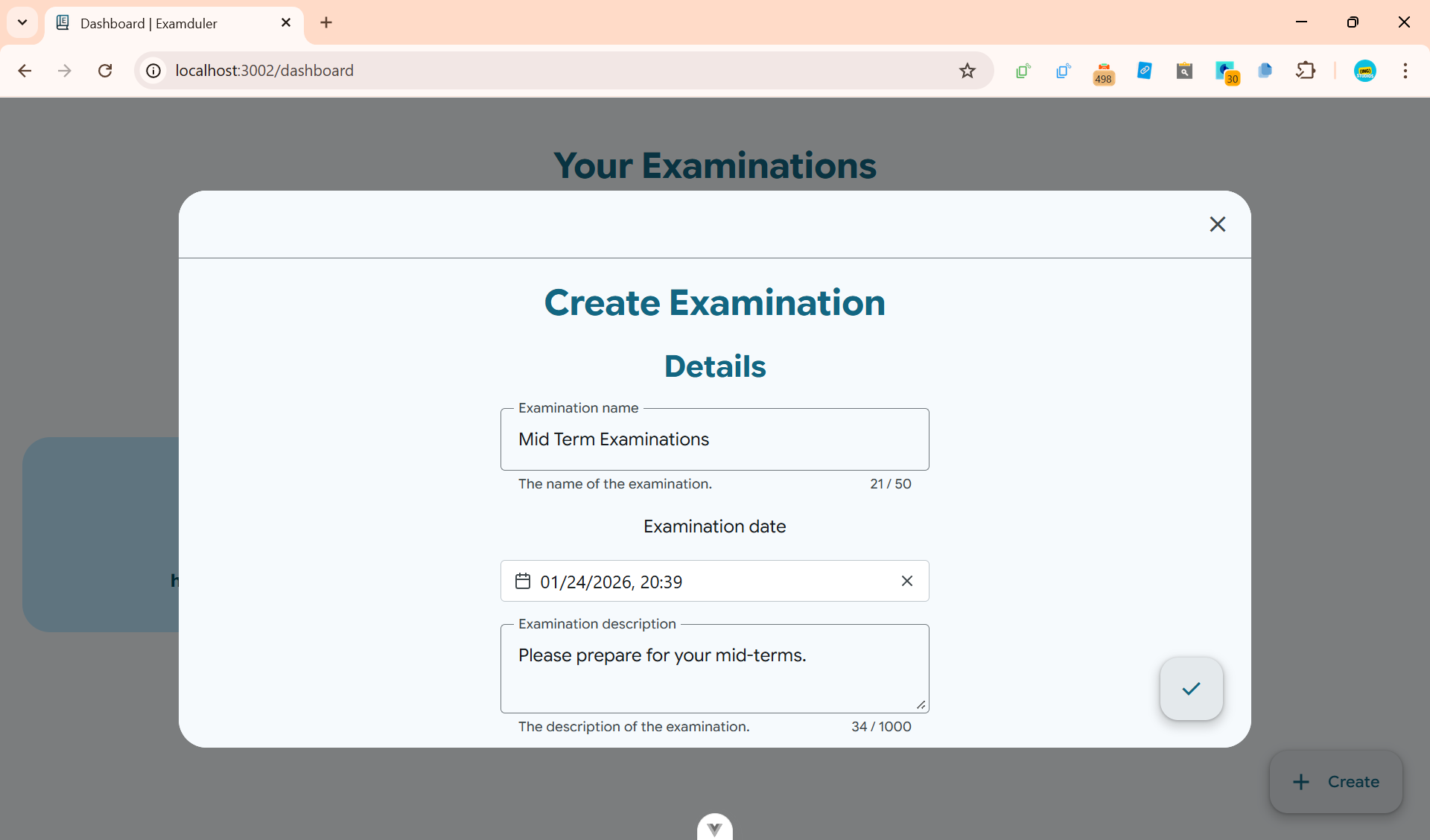
Enter a name, date and description, then upload the seating as a CSV file. The seating should be formatted as shown below:
A1, youremail@yourdomain.com
A2, youremail@yourdomain.com
B1, youremail@yourdomain.com
C1, youremail@yourdomain.com
C2, youremail@yourdomain.com| Seat | |
|---|---|
| A1 | youremail@yourdomain.com |
| A2 | youremail@yourdomain.com |
| B1 | youremail@yourdomain.com |
| C1 | youremail@yourdomain.com |
| C2 | youremail@yourdomain.com |
Lastly, click
Bulk Create Examinations
Firstly, click the
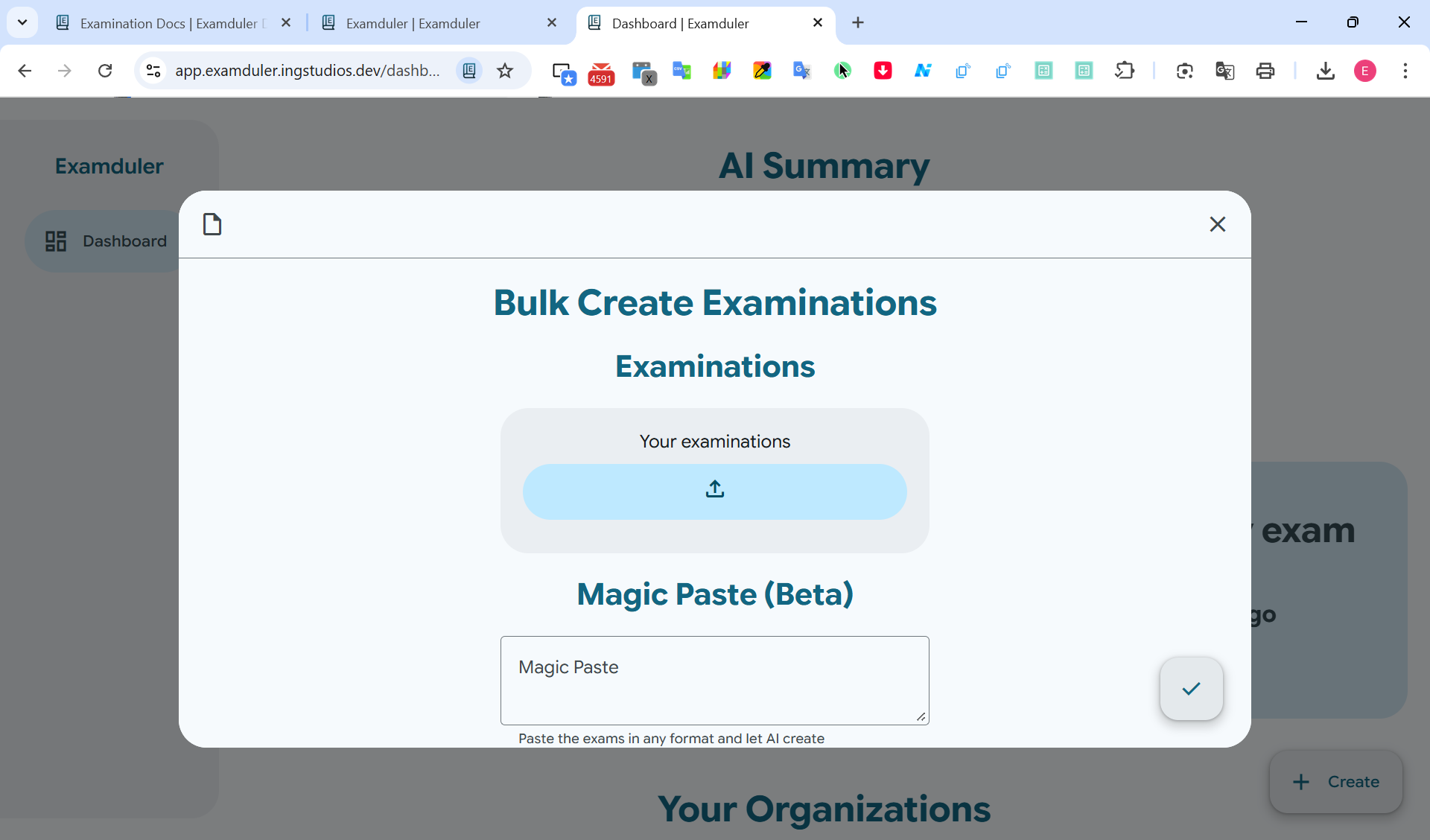
There are 2 methods of bulk creating examinations.
1. Upload a JSON file
Press the button and upload a JSON file containing the examinations in the following format:
[
    {
        "name": "Mid Term Examinations",
        "date": "2026-01-06T12:00:00Z",
        "description": "Please prepare for your mid-terms.",
        "seating": [
            [
                {
                    "seat": "A1",
                    "name": "Ethan Lee",
                    "email": "contact@ingstudios.dev"
                },
                {
                    "seat": "A2",
                    "name": "Person 1",
                    "email": "unique.email.01@example.com"
                },
                {
                    "seat": "A3",
                    "name": "Person 2",
                    "email": "unique.email.02@example.com"
                },
                {
                    "seat": "A4",
                    "name": "Person 3",
                    "email": "unique.email.03@example.com"
                },
                {
                    "seat": "A5",
                    "name": "Person 4",
                    "email": "unique.email.04@example.com"
                },
                {
                    "seat": "A6",
                    "name": "Person 5",
                    "email": "unique.email.05@example.com"
                },
                {
                    "seat": "A7",
                    "name": "Person 6",
                    "email": "unique.email.06@example.com"
                },
                {
                    "seat": "A8",
                    "name": "Person 7",
                    "email": "unique.email.07@example.com"
                }
            ],
            [
                {
                    "seat": "B1",
                    "name": "Person 8",
                    "email": "unique.email.08@example.com"
                }
            ],
            [
                {
                    "seat": "C1",
                    "name": "Person 9",
                    "email": "unique.email.09@example.com"
                },
                {
                    "seat": "C2",
                    "name": "Person 10",
                    "email": "unique.email.10@example.com"
                },
                {
                    "seat": "C3",
                    "name": "Person 11",
                    "email": "unique.email.11@example.com"
                },
                {
                    "seat": "C4",
                    "name": "",
                    "email": "",
                    "isBlank": true
                },
                {
                    "seat": "C5",
                    "name": "Person 12",
                    "email": "unique.email.12@example.com"
                }
            ]
        ]
    },
    {
        "_id": "69324bbfcd93fc363e047401",
        "name": "Year End Examinations",
        "date": "2026-01-06T12:00:00Z",
        "description": "Please prepare for your EOY.",
        "seating": [
            [
                {
                    "seat": "A1",
                    "name": "Ethan Lee",
                    "email": "contact@ingstudios.dev"
                }
            ]
        ]
    }
]
2. Magic Paste
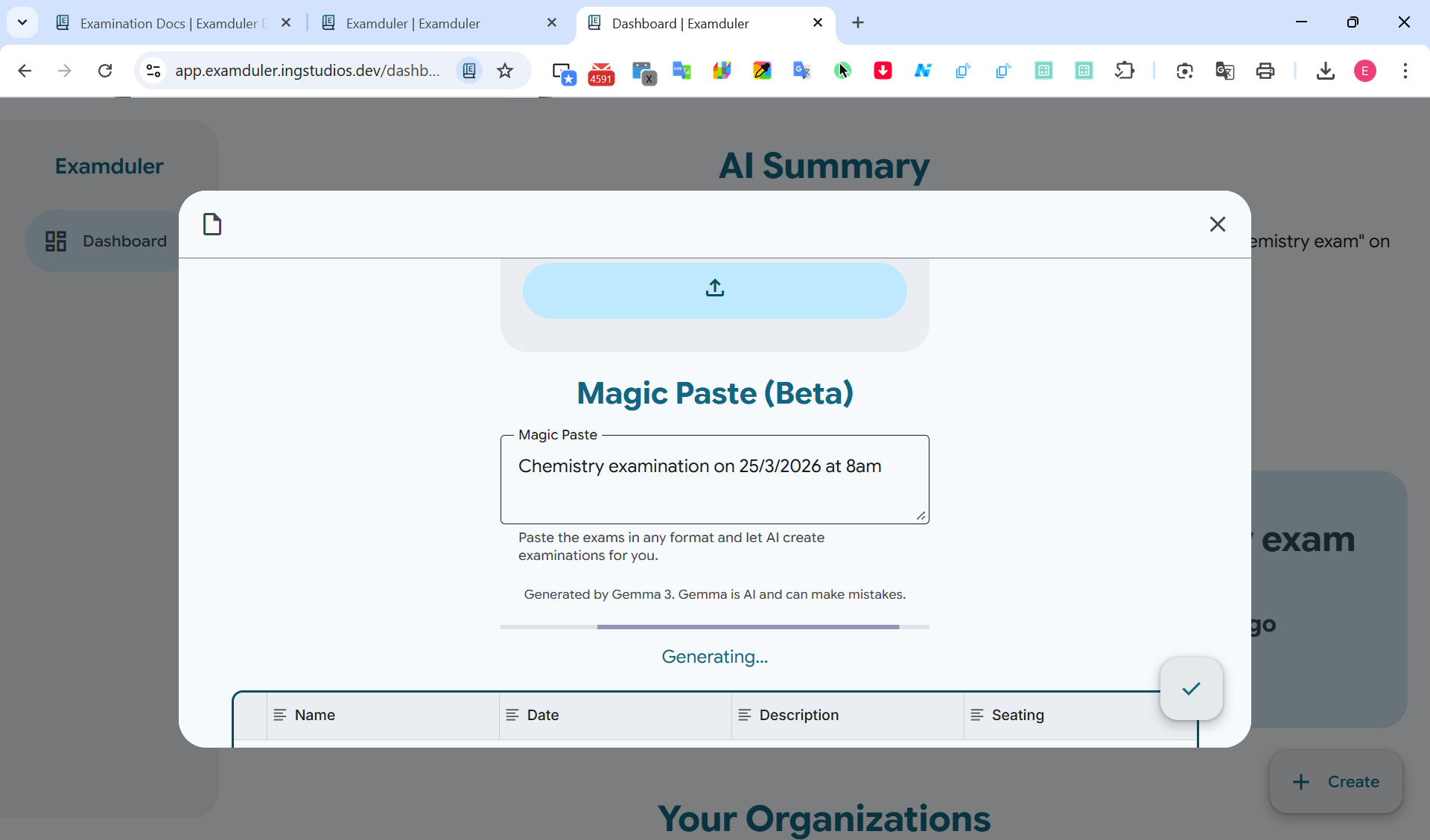
Let AI format your examinations with Magic Paste. Paste text containing examination details and let AI extract the information and format it into the correct format.
INFO
All data is processed using Gemma 3 on our servers. No data is sent to third-party AI providers.
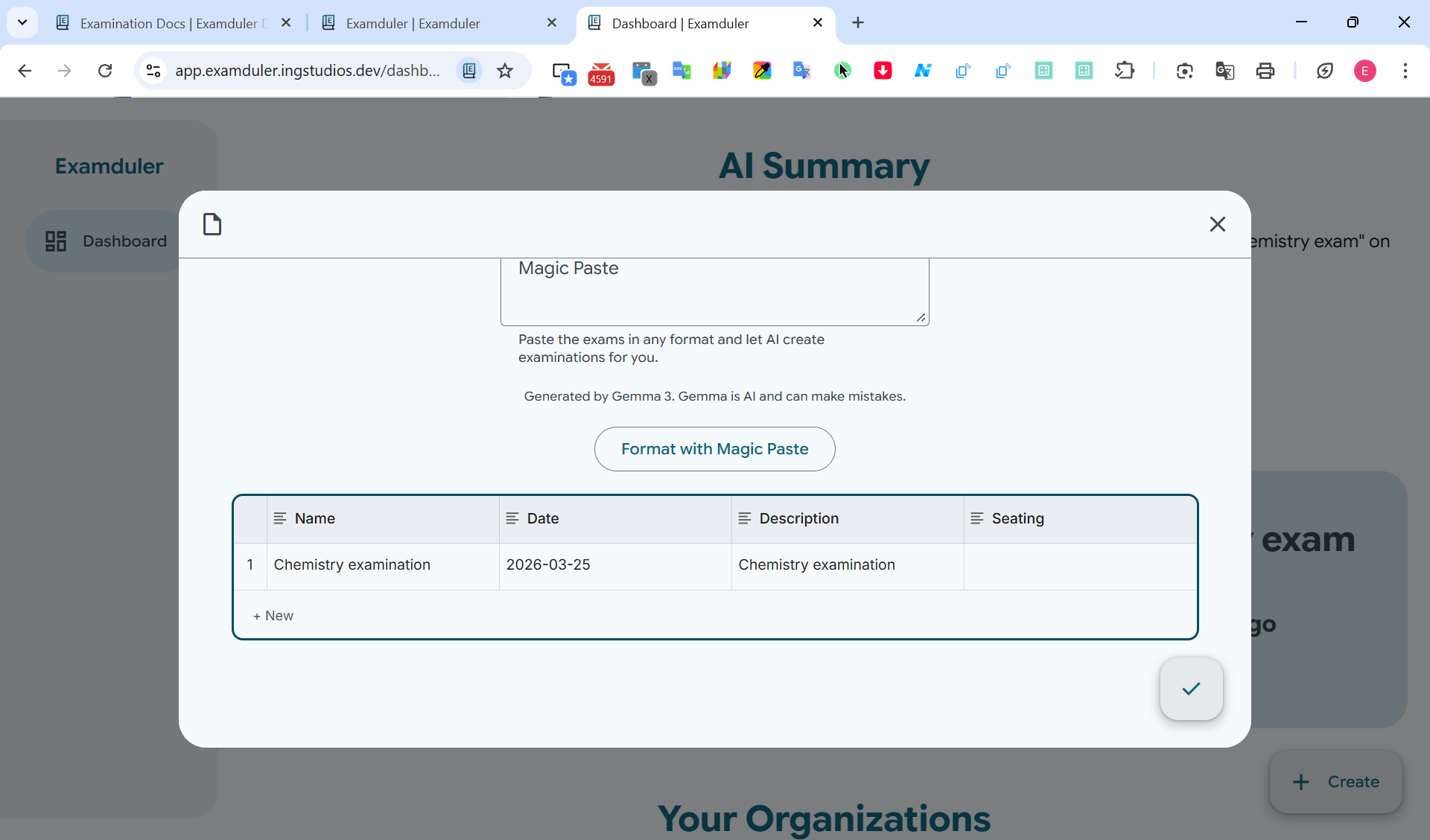
If you feel that the details need to be changed or reformatted, edit the examinations in the table. Once you are happy with your details, click
Edit an Examination
Click the
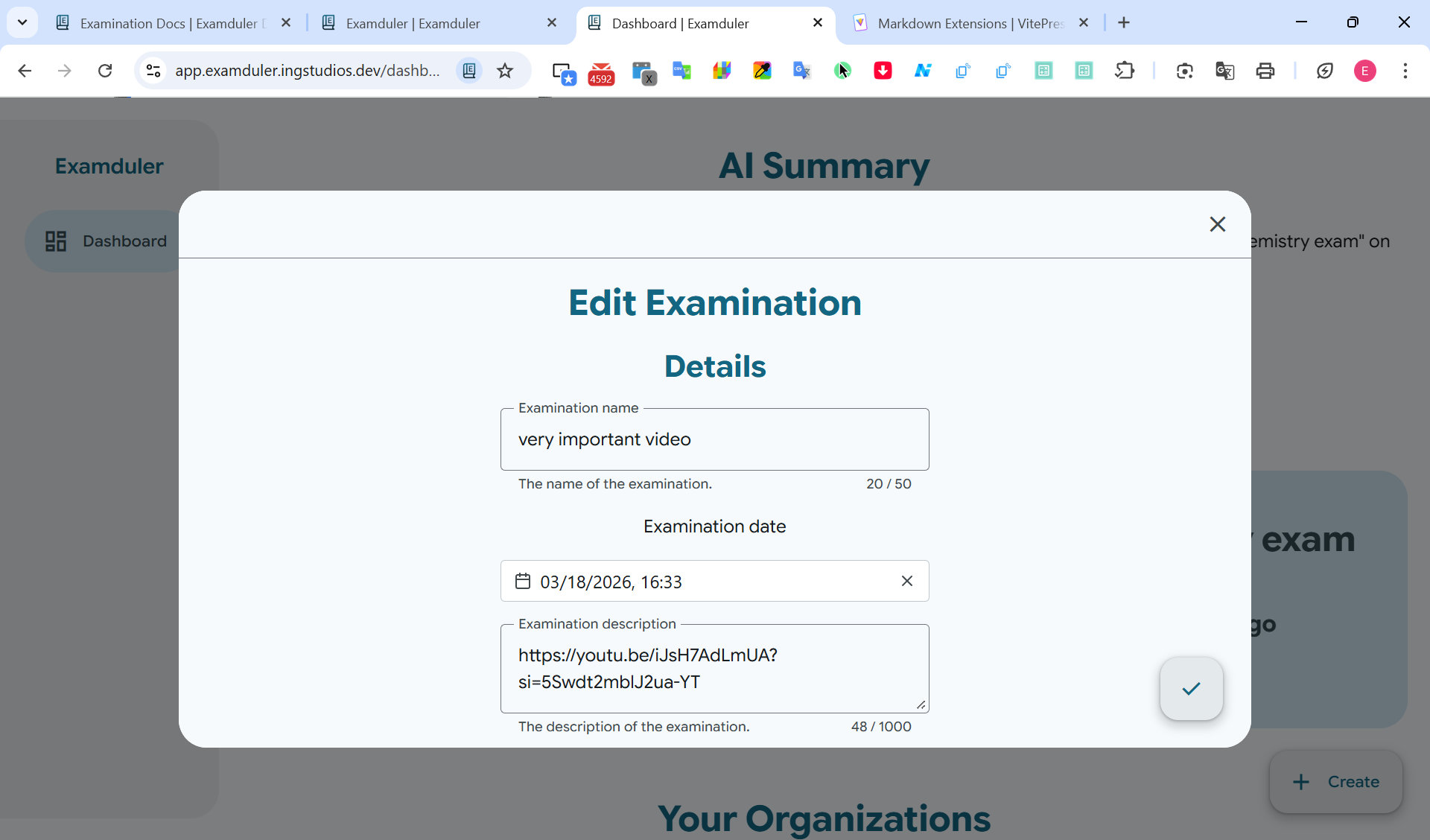
Edit any fields that need to be edited and click
Delete an Examination
Open the examination dialog and click the
DANGER
This action is irreversible! All seating information will be deleted, and students and teachers will not be able to view the examination anymore.